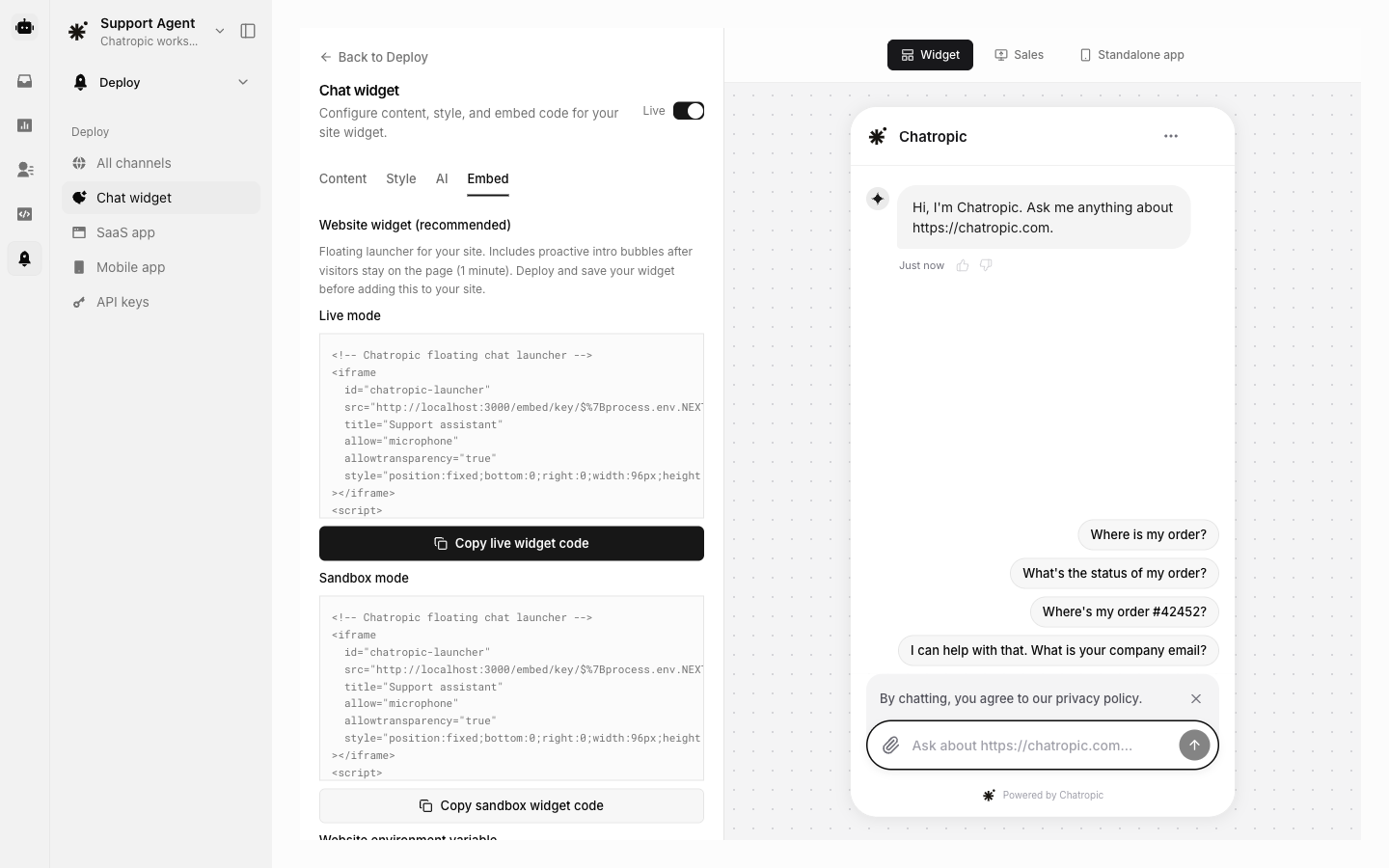

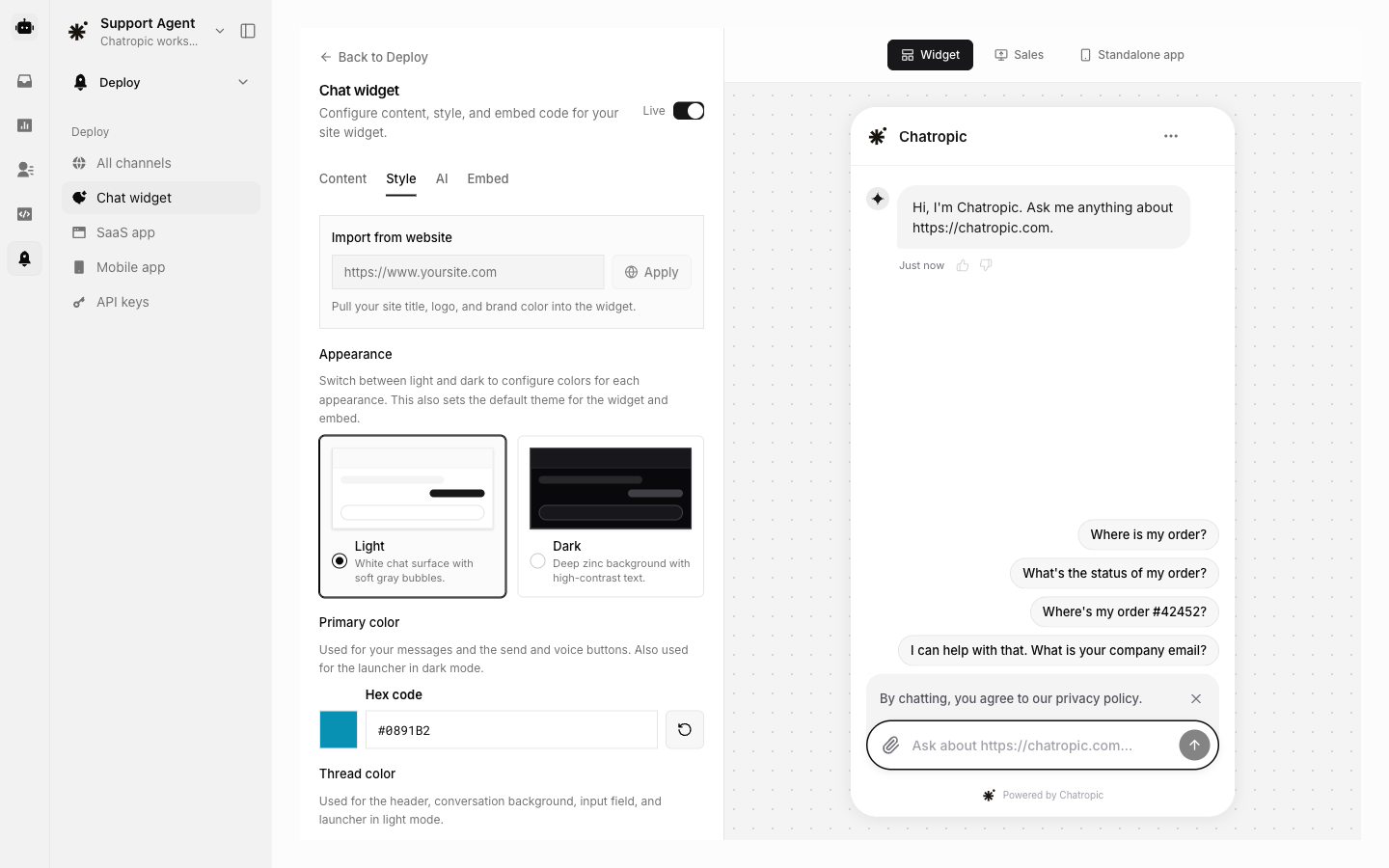
Open Deploy > Chat widget. Use the Content, Style, and AI tabs to configure the widget, then open Embed to copy code. Deploy and save your widget before pasting snippets on your site, so visitors load the published config.
1

Configure branding

On Chat widget, open the Content and Style tabs. Set display name, primary color, light/dark appearance, welcome message, and suggested prompts. Optionally use Import from website on the Style tab.
2

Choose a layout

  • Website widget (recommended): floating launcher with optional proactive intro bubbles (Copy website widget code)
  • Inline chat panel: fixed chat panel in a page region (Copy inline panel code)
  • Standalone app: full-page chat at a dedicated URL (Copy app link)
3

Paste on your host page

Add the copied snippet to your marketing site, storefront, docs, or help center.
4

Verify

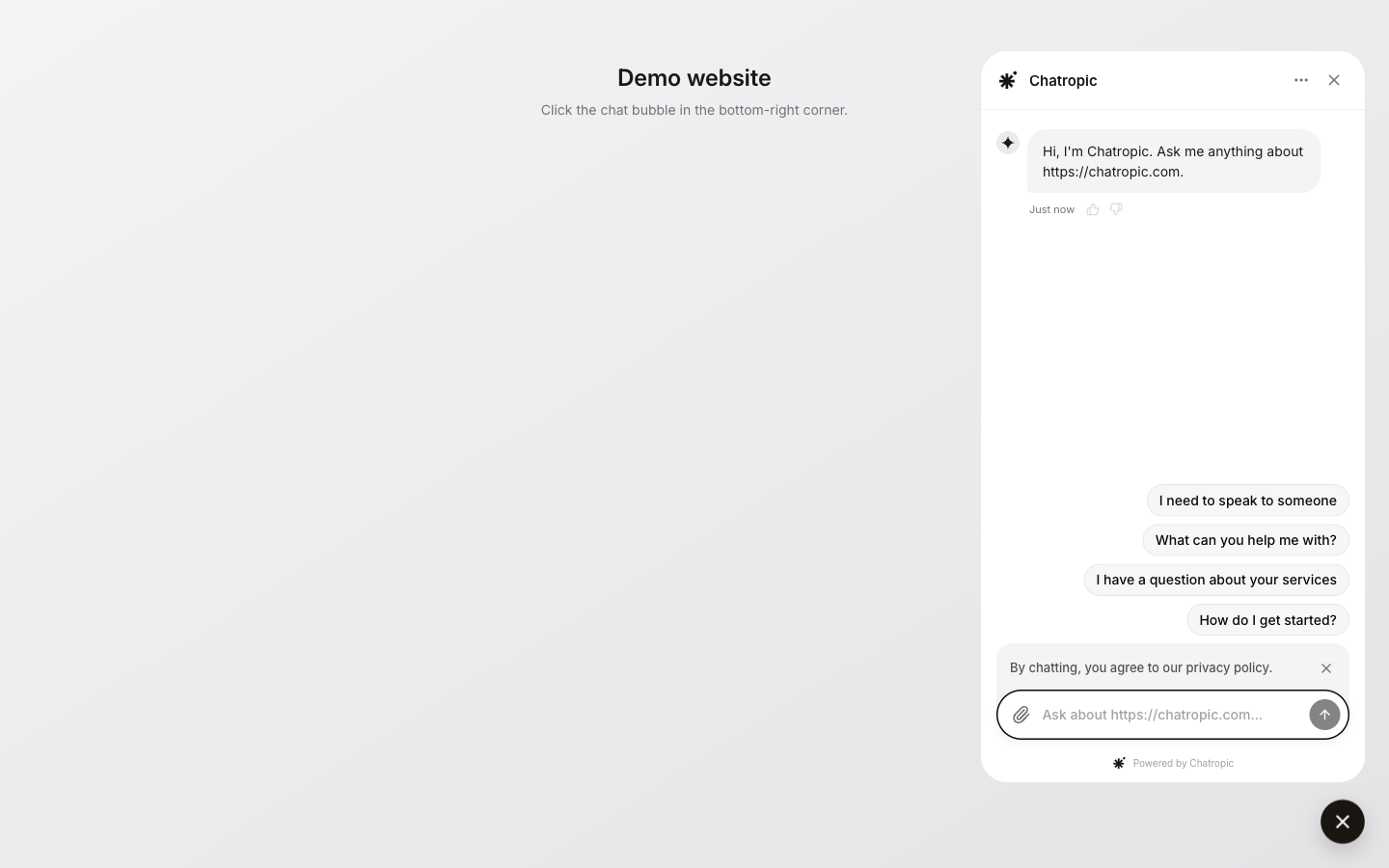
On the Embed tab, use Open anonymous chat demo or Open floating launcher demo, send a test message, then check Chat logs.
The Chat widget setup is for public websites and inline support panels. For an authenticated right-side drawer inside a web app, use Deploy > SaaS app instead.

Website widget vs inline panel

Website widget

Copy website widget code emits a floating launcher iframe plus launcher host scripts. Snippets omit session so each visitor starts an anonymous thread listed under Chat logs. The copied snippet includes:
  • setupChatropicLauncherHostListener, which resizes the host iframe when chat opens or closes
  • An embed wake and viewport sync script, which keeps proactive bubbles and mobile layout in sync with the host page
  • Encapsulated mobile viewport helpers, so you do not need to wire media queries yourself

Proactive chat bubbles

On the Content tab, enable Proactive chat bubbles to show intro bubbles above the launcher after visitors stay on the page. Set Show after (seconds) (default 60s). Bubbles appear once per browser session. Proactive bubbles apply to the website widget only. The inline panel layout does not show them because chat is always open.

Launcher iframe sizing

The launcher iframe is intentionally larger than the visible bubble so the open panel has room to expand. Do not shrink it to the button size; the bubble and panel are positioned inside the iframe. Keep background:transparent so only the launcher UI is visible on your page. On viewports below 640px, the copied host listener shrinks the closed iframe and expands it to full screen when chat opens. Paste the full copied snippet and do not omit setupChatropicLauncherHostListener.

Inline chat panel

Copy inline panel code emits a fixed iframe. Proactive bubbles are not shown in this layout.

Standalone app

Copy app link shares a full-page chat experience at /a/{workspace-slug} with no iframe on your site. This is useful for a dedicated support URL or quick sharing during rollout.
Do not add a session query param to production embed URLs. Without it, each visitor receives a unique anonymous session. Pinned session values are for Playground preview only.

Anonymous sessions and Chat logs

Production embed snippets strip the session query param so each visitor starts a fresh conversation. Those threads appear under Chat logs, not in Inbox. After deploying, open Open anonymous chat demo on the Embed tab, send a message, then View in Chat logs to confirm traffic is recorded.

Action tokens and identity

The widget does not store API credentials. Tokens are configured in the dashboard and referenced from HTTP actions; the widget only needs extra URL params when actions use customer login or when you want to associate a known website user with the conversation. For logged-in users on your site, append these params to the iframe src when the visitor is signed in:
Generate the identity signing secret from Manage tokens when creating a customer-login token. Sign JWTs on your server with HS256, including sub (must match endUser) and exp. Never expose the signing secret or JWT minting logic in browser code.
Do not put static API secrets in the embed URL. Only pass endUser and identity for customer-login identity. Actual API credentials stay in Manage tokens.

Embed URL options

Copied snippets use an API-key embed URL in the form /embed/key/{publishable-key}. Widget name, colors, welcome message, and suggested prompts load from the workspace linked to the publishable key, so they are not repeated in the URL. Add query params only for runtime behavior:
Older snippets inlined appearance via query params (name, header, welcome, prompts, etc.). Those still work on /embed?tenant=...&name=..., but new deploy snippets use the API-key path form above.

SaaS app

Right-side drawer setup for authenticated web apps.

Chat logs

Anonymous visitor history under Activity > Chat logs.

Widgets & branding

Appearance and prompt chips.

Manage tokens

Static and customer-login credentials for actions.