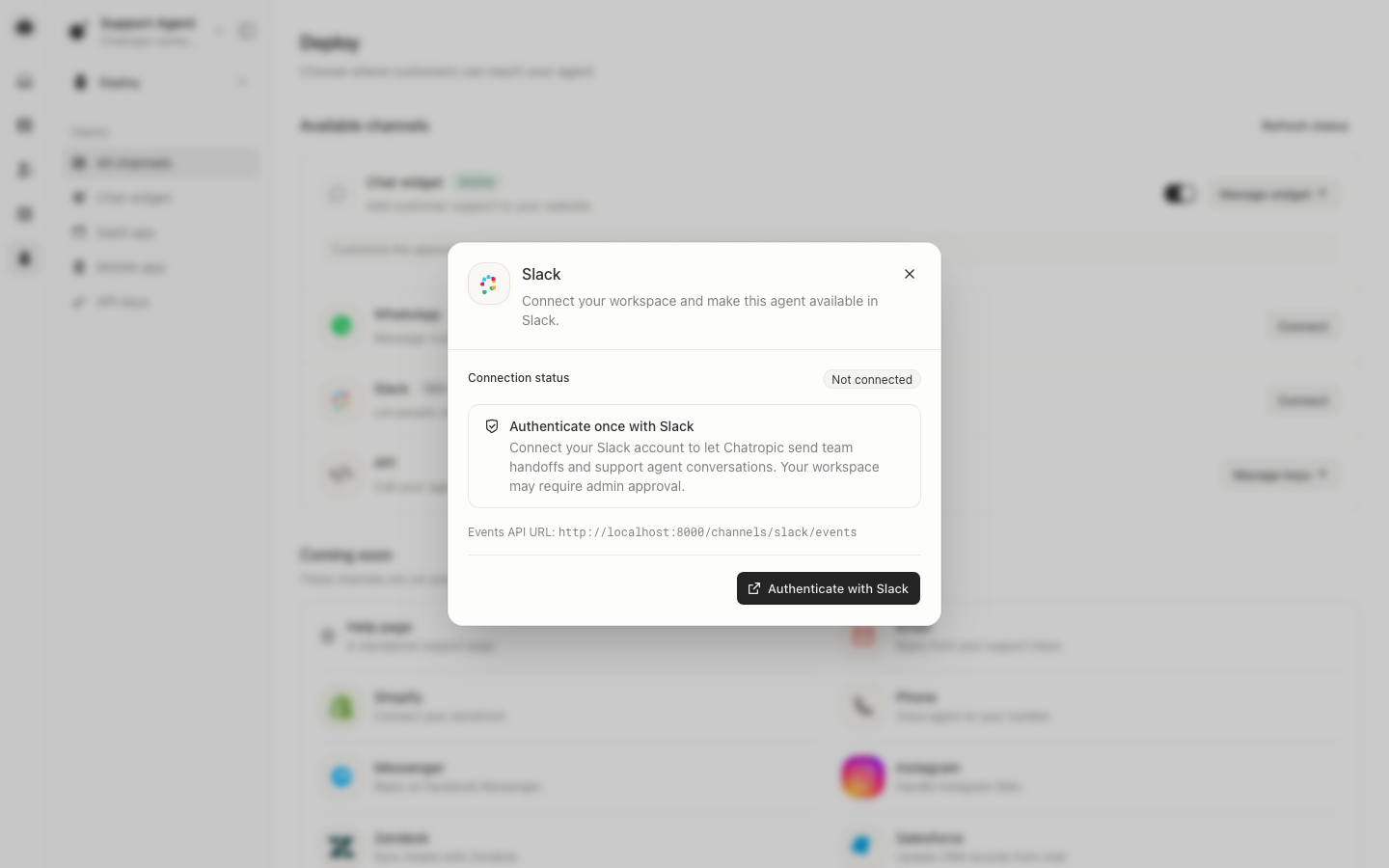
Slack is Beta. Open Deploy > Channels > Slack, select Connect Slack, and approve the intended workspace. A Chatropic workspace owner/admin or member with integration-management permission can connect it. Your Slack administrator may also need to approve the app. Chatropic manages the app credentials; customers do not create a Slack app or copy tokens.
Slack authorization and connection status.
Verify the connected workspace and capabilities, then test in a non-sensitive channel. Reauthorize when permissions or ownership changes. Never paste Slack tokens into prompts, procedures, YAML, or connector headers.
Connecting Slack authenticates the workspace. Publish the agent to production, then choose Enable Slack deployment to let it answer questions using its published knowledge and connected tools. Invite Chatropic into channels where it should respond.Optionally set a Conversation channel ID and Channel label. A channel-specific agent handles mentions in that channel. Leave the ID blank for the default agent that handles direct messages and unmatched channels. Only one default agent and one agent per specific channel are allowed in a connected Slack workspace. Disable conversations before changing the channel. Settings save automatically when you leave a field.Direct messages retain context for the same Slack user and agent. In channel threads, mention @Chatropic on each follow-up to trigger a reply. Context is separate for each user, even within a shared thread. This integration does not search Slack message history.Use Disable deployment to stop agent conversations when needed. Escalation alerts have their own channel selector and enable/disable control and can stay enabled independently. See Slack escalation to choose a destination and send a test alert.