Add an assistant drawer to an authenticated web product
The SaaS profile renders Chatropic inside an application shell rather than as a public launcher.
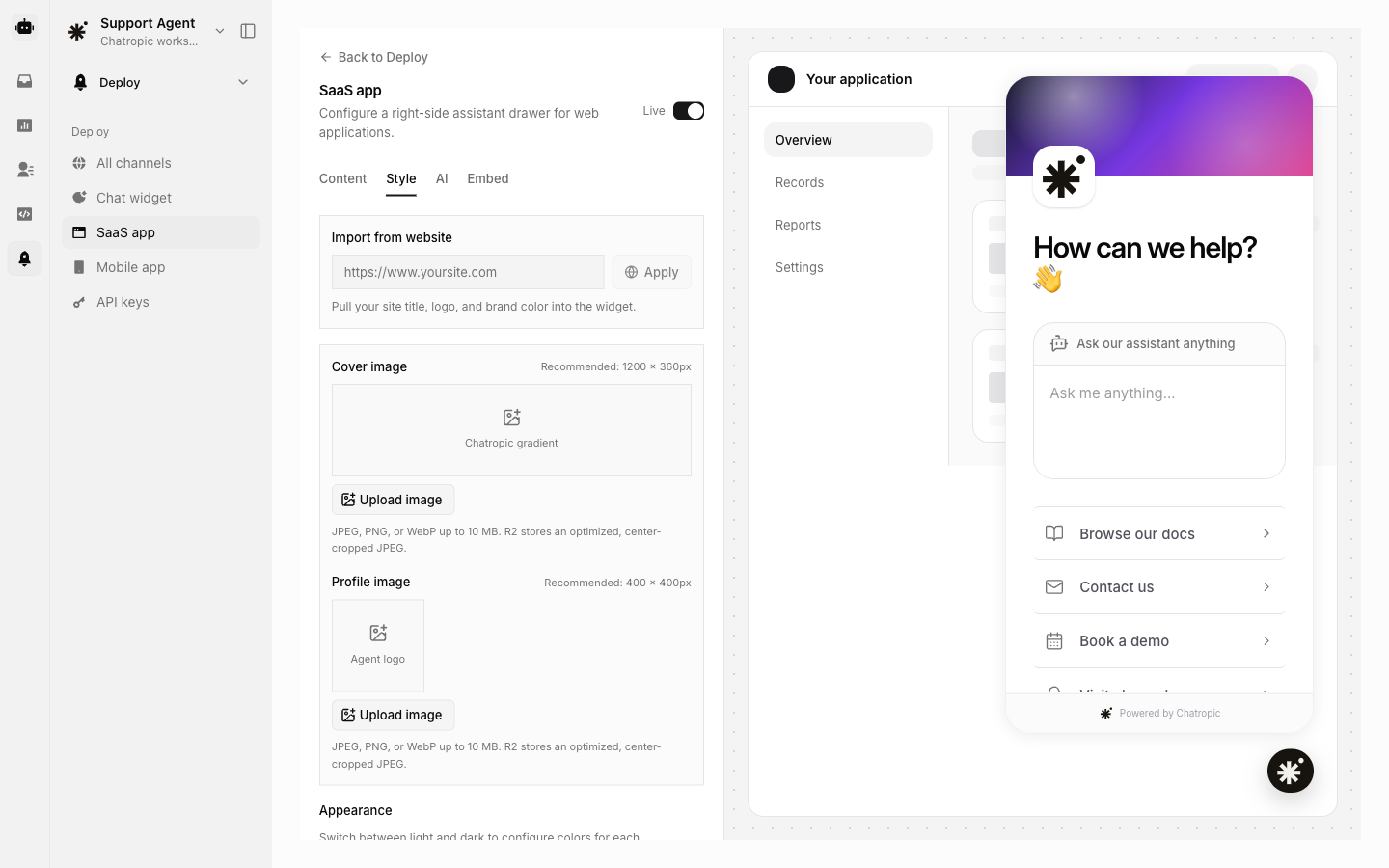
SaaS cover and profile settings with the assistant home preview.
Publish the profile, copy its generated snippet, pass stable customer context, and handle navigation with an allowlist in the host app. Keep account authorization and private API access on your backend.
In Content, set the Home greeting and add up to six Quick actions. Review each label and destination, including the default documentation, contact, demo, changelog, and pricing links, before publishing.In Style, upload a Cover image and Profile image. Use JPEG, PNG, or WebP files up to 10 MB. Recommended sizes are 1200 × 360 for the cover and 400 × 400 for the profile. Uploads are optimized and center-cropped, so keep important details near the center. Removing a custom image restores the gradient cover or agent-logo fallback.Preview the home screen, links, and conversation view, then publish the SaaS profile and test the generated embed in your application.