

To connect your own AI client to Chatropic and access workspace knowledge, conversations, and billing, see Connect your AI agent.
https://mcp.example.com/api/mcp. This transport supports JSON and SSE responses; legacy SSE-only endpoints and local stdio servers are not supported.
Choose authentication
A server environment variable such as
MCP_AUTH_TOKEN stays on that server. Chatropic cannot read it automatically. For Bearer authentication, save the same value in Chatropic using the form below. Do not paste secrets into support messages or agent instructions.Connect with Automatic / OAuth
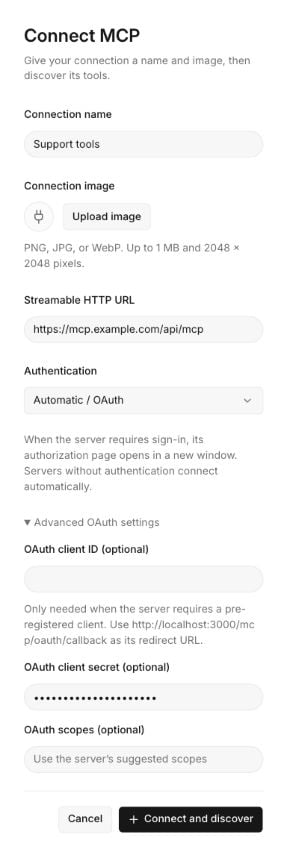
Automatic / OAuth with advanced settings expanded. Local preview using placeholder data.
- Open your agent’s Tools → Connect MCP page.
- Enter a Connection name and Streamable HTTP URL.
- Leave Authentication set to Automatic / OAuth.
- If the provider requires a registered client, expand Advanced OAuth settings and enter its Client ID, Client Secret, and Scopes. Otherwise leave them empty.
- Select Connect and discover. If authentication is required, finish signing in and granting access in the provider’s window. Servers without authentication connect directly.
- Return to Chatropic and review the discovered tools.
Connect with a Bearer token
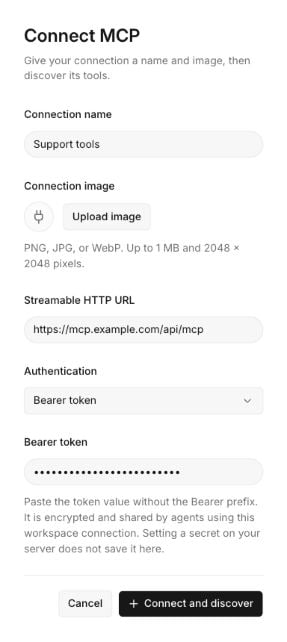
Bearer-token setup. Local preview using placeholder data.
- Open Tools → Connect MCP, then enter the name and server URL.
- Select Bearer token under Authentication.
- Paste the actual secret into Bearer token. For a server configured with
MCP_AUTH_TOKEN, enter its value—not the variable name and notBearer <value>. - Select Connect and discover. Chatropic encrypts the credential, clears the input, and checks the server. This mode does not open an OAuth window.
- Review the discovered tools. If checking fails after saving, Token saved confirms that you can retry without creating another connection.
Replace a token or repair a saved reference
Open the connection details, select Replace token, enter New Bearer token, and select Save token. Then select Check connection. Saving replaces authentication for that connection; the previous secret is not displayed. Older connections may show Saved credential reference, such assupport_mcp_token. That text is a lookup name, not a secret. Use Replace token to save a working value directly; you do not need a separate vault screen. Existing shared references are not deleted by this replacement.
Existing OAuth connections continue to use sign-in. To change an OAuth connection to Bearer authentication, create a separate connection and update its tool grants after testing.
Discover, grant, and test tools
A successful check displays the number of discovered tools. Review their descriptions and schemas. Open the target subagent’s Tools tab, choose Add MCP tool, and grant only the required tools. A connection alone does not grant tool access. Test successful and failing calls in Sandbox before Set Live. After replacing a token, test an actual tool call as well as discovery: the token may permit listing tools but lack permission for a particular business operation. A failed recheck retains Previously discovered tools; it does not mean those tools are currently reachable. Fix the connection and check again before relying on them. MCP credentials and grants are not included in exported YAML.Troubleshooting
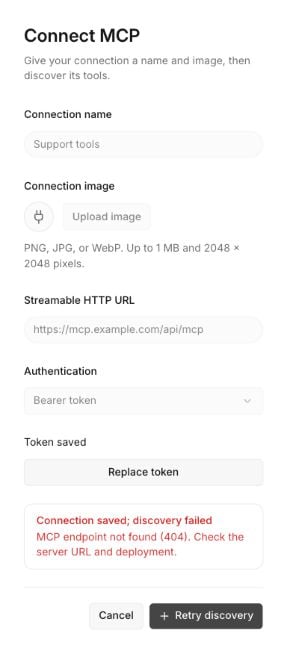
A saved credential and an unavailable endpoint are reported separately. Simulated 404 in the local preview.
Discovery has a 25-second backend deadline; the proxy and browser allow a short additional interval to report the result. OAuth’s interactive sign-in is a separate step. Use Cancel during initial checks or Cancel check in connection details to stop waiting. Retrying a saved connection does not create another one.
When contacting support, provide the error message, time, server URL, and any correlation ID from backend logs. Never include the token or Authorization header.